10 min read
Experiment safely with OpenClaw in a Blaxel sandbox
Run OpenClaw (formerly Clawdbot, Moltbot) safely inside a Blaxel Sandbox instead of your own computer.

Ah OpenClaw - the lobster-bot everyone's talking about!
Over the last two weeks, my LinkedIn feed has been full of commentary about OpenClaw (formerly Moltbot / Clawdbot). People are genuinely excited about its capabilities, but that excitement is tempered with worries about security. No one loves the idea of giving an AI agent full access to their personal data.
So I thought, why not run it in a sandbox instead?
Sandboxes are minimal compute environments that guarantee security and isolation. Placing an agent in a sandboxed environment effectively "fences" it in, allowing you to explore its capabilities without worrying about unauthorized data access or risky commands.
After some trial and error (and some critical help from our engineering team), I was able to get OpenClaw running in a Blaxel sandbox. I also connected it to my Discord server so I could chat with it and give it instructions. Here's an example of it in action:
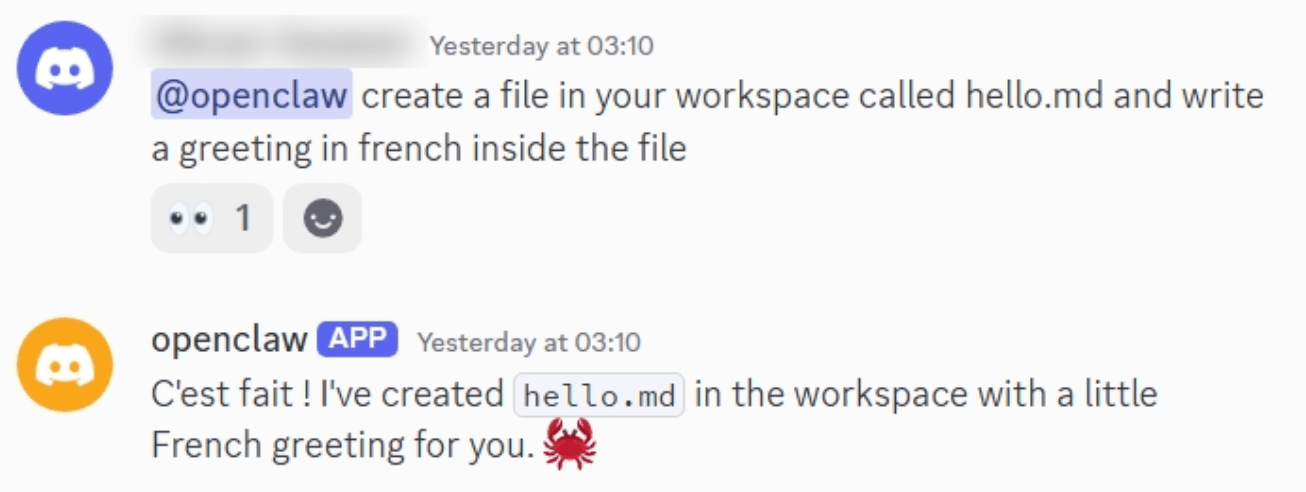
If all the buzz about OpenClaw has you itching to try it out, running it in a secure, isolated Blaxel sandbox is a great way to experiment with it.
Here's what you need to get started:
- a Blaxel account
- an API key from any of the supported model providers
- a Python development environment
Then, follow the steps below.
Create a sandbox
-
Download and install the Blaxel CLI and log in to your Blaxel account:
bl login -
In a new directory, install the Blaxel Python SDK (there's also a TypeScript SDK):
python3 -m venv .venv source .venv/bin/activate pip install blaxel -
Create a script named
main.pyin the same directory:import asyncio import os import sys from datetime import datetime, timedelta, UTC from blaxel.core import SandboxInstance async def main(): # Create sandbox sandbox = await SandboxInstance.create_if_not_exists({ "name": "openclaw-sandbox", "image": "blaxel/node:latest", "memory": 4096, "ports": [{ "target": 18789, "protocol": "HTTP" }], "region": "us-pdx-1", }) # Create preview preview = await sandbox.previews.create_if_not_exists({ "metadata": {"name": "openclaw-gateway"}, "spec": { "port": 18789, "public": False, } }) # Create preview token # Valid for 24 hours expires_at = datetime.now(UTC) + timedelta(minutes=1440) token = await preview.tokens.create(expires_at) # Get preview URL and token print(f"Preview URL: {preview.spec.url}") print(f"Token: {token}") if __name__ == "__main__": asyncio.run(main())This script:
- creates a new Blaxel sandbox named
openclaw-sandboxusing Blaxel's Node.js base image; - opens the sandbox port 18789, which OpenClaw uses for WebSocket and HTTP connections; and
- creates a preview URL for the service running on that port;
- creates an access token for the preview URL, valid for 24 hours.
- creates a new Blaxel sandbox named
-
Run the script to create the sandbox and preview URL:
python main.pyOnce complete, the script displays the generated preview URL (for example,
https://b186....preview.bl.run) and preview URL access token (for example,cbba622560db78e...). Note these values, as you will require them in subsequent steps.
Install and configure OpenClaw
-
Connect to the Blaxel sandbox terminal:
bl connect sandbox openclaw-sandbox -
Execute the following commands to install OpenClaw in the sandbox:
apk add curl bash make cmake g++ build-base linux-headers jq
npm install -g openclaw@latest
For detailed installation instructions, refer to the OpenClaw documentation.
-
Configure OpenClaw:
openclaw onboardRead and accept the security warning to proceed. Select the Quickstart mode to proceed. You will be prompted for more information, including choosing a model provider, channels, skills and hooks. At minimum, you must select a model provider and model and enter the required API key. All other steps are optional and can be skipped if you don't have the details yet.
-
Once the configuration process is complete, OpenClaw will display status output. This will usually include a message that
systemdservices are unavailable. This is expected as, for performance reasons, Blaxel sandboxes do not include thesystemdprocess manager. -
The status output also displays a tokenized dashboard link. Note the dashboard token (for example,
e782efff66...), as it will be required in the next step.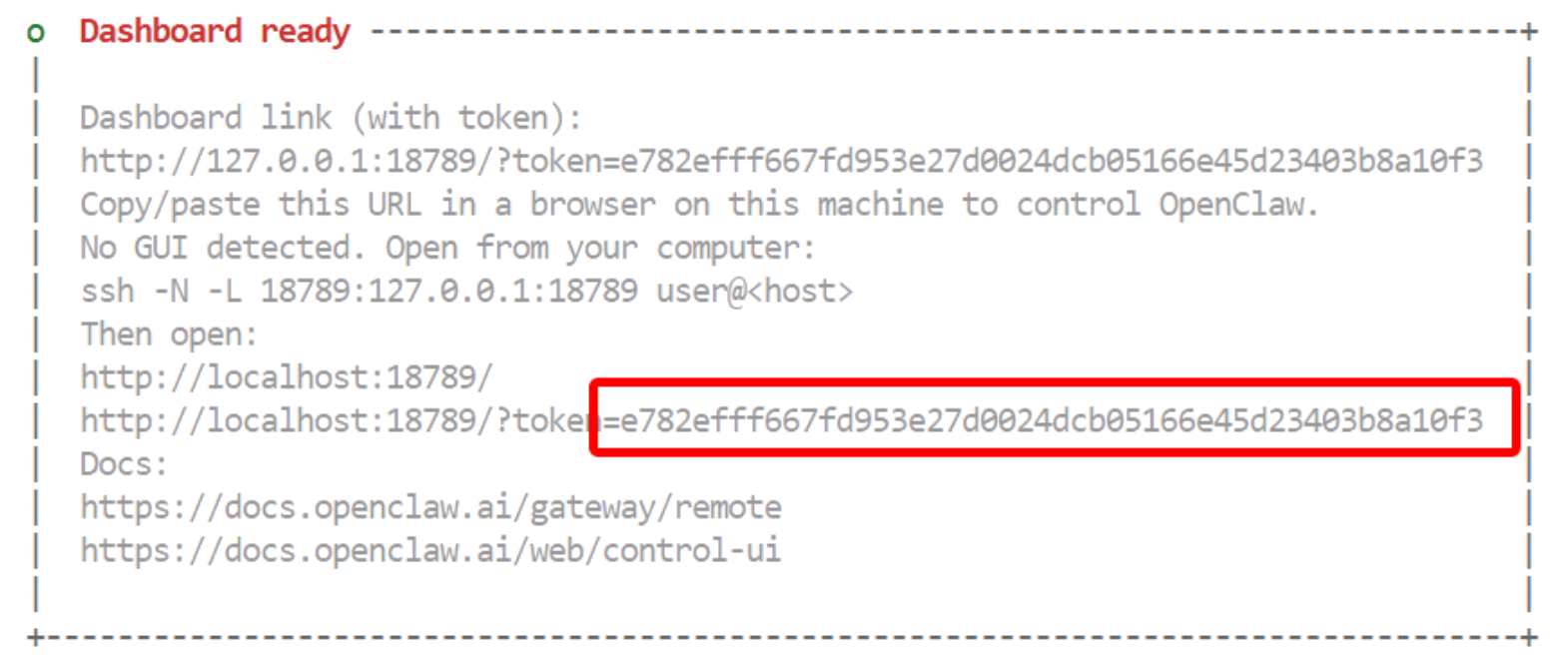
Configure OpenClaw Gateway access
-
Edit the OpenClaw configuration file at
/blaxel/.openclaw/openclaw.jsonand add the preview URL to the list of allowed origins:"gateway": { "controlUi": { "allowedOrigins": ["https://b186....preview.bl.run"] }, // ... }An alternative way to do this is with
jq:jq '.gateway.controlUi = {"allowedOrigins":["https://b186....preview.bl.run"]}' openclaw.json > openclaw.json.new && mv openclaw.json.new openclaw.json -
Start the OpenClaw Gateway service manually, and keep it running.
openclaw gateway --bind lan --verboseConfirm that you see log messages like the ones below about the Gateway service starting and listening for requests:
14:25:22 [gateway] agent model: google/gemini-2.5-flash-preview-09-2025
14:25:22 [gateway] listening on ws://0.0.0.0:18789 (PID 1660)
14:25:22 [gateway] log file: /tmp/openclaw/openclaw-2026-02-06.log
14:25:22 [ws] → event health seq=1 clients=0 presenceVersion=1 healthVersion=2
IMPORTANT: This is the OpenClaw Gateway process. Make sure that it is running for the rest of these instructions.
-
Browse to the sandbox preview URL, remembering to also include the preview URL access token in the URL string - for example,
https://b186....preview.bl.run?bl_preview_token=cbba.... This displays the OpenClaw Control UI. -
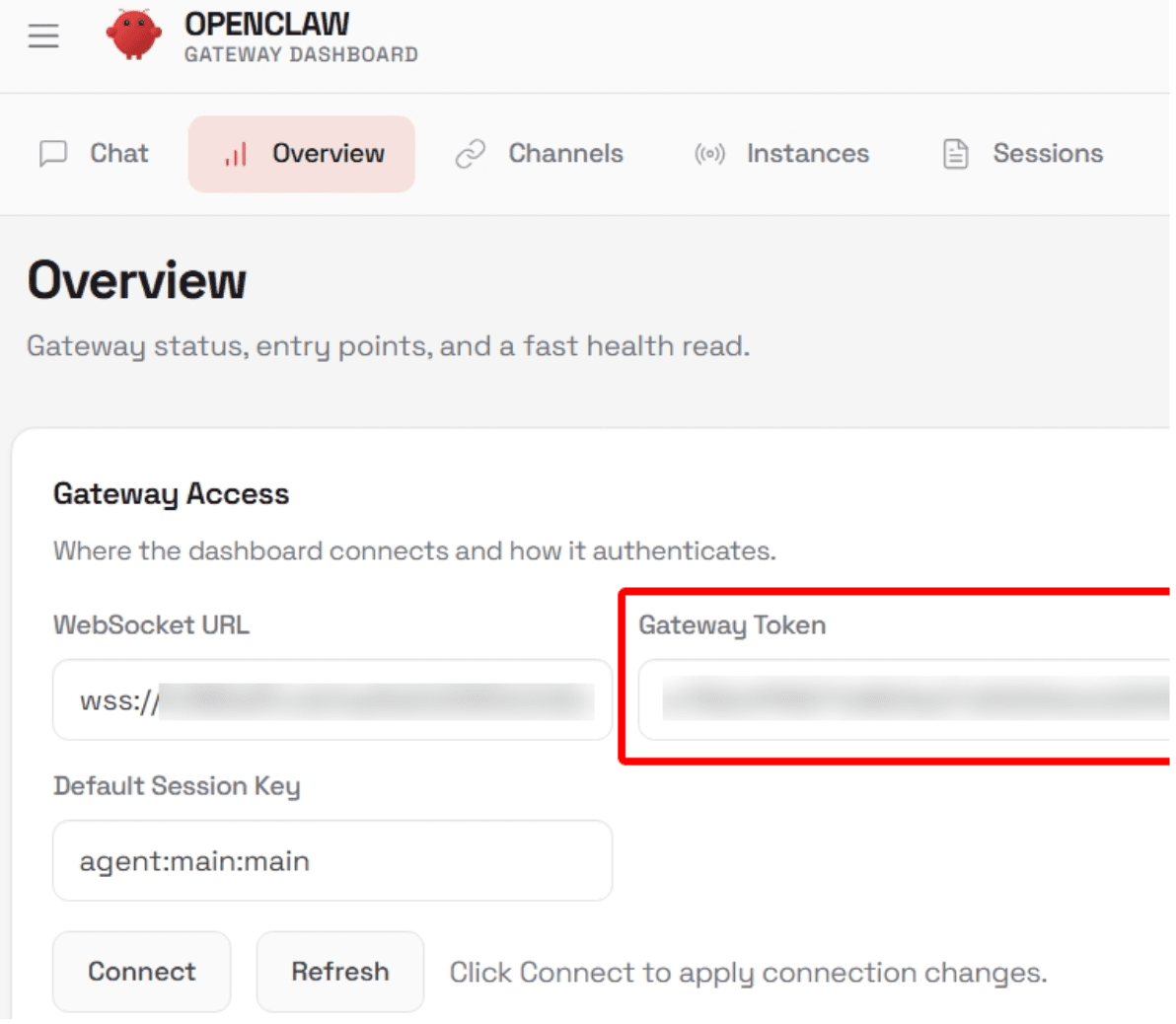
Navigate to the Overview page and enter the dashboard token in the Gateway Token field.
-
The Control UI also displays the error
pairing required. This is because the OpenClaw Gateway requires a one-time pairing approval for connections from a new browser/device.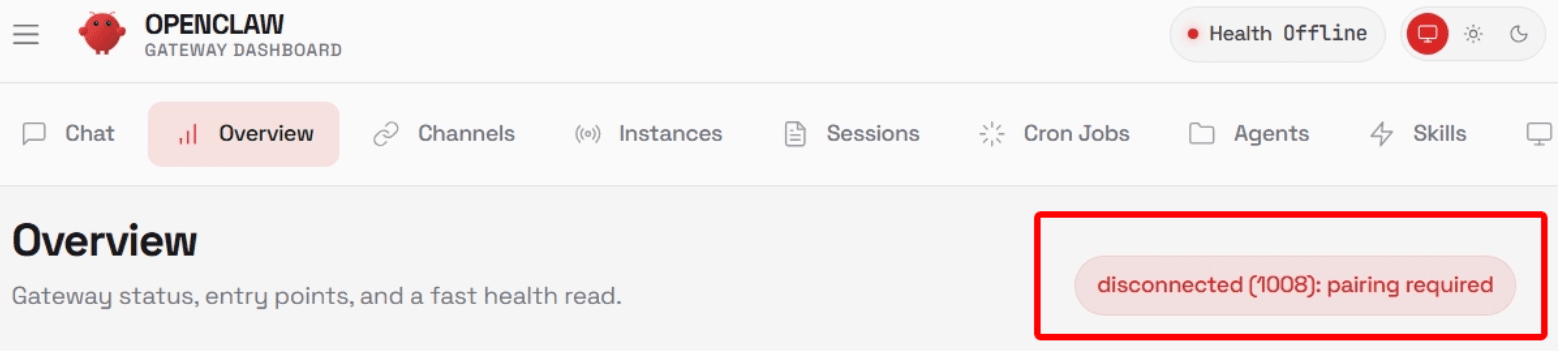
-
Connect to the sandbox terminal in a separate terminal window (to not kill the gateway process running):
bl connect sandbox openclaw-sandbox -
List the available pairing requests:
openclaw devices list -
Typically, there will only be one pending pairing request. Approve it using its request identifier:
openclaw devices approve f06d4e9b... -
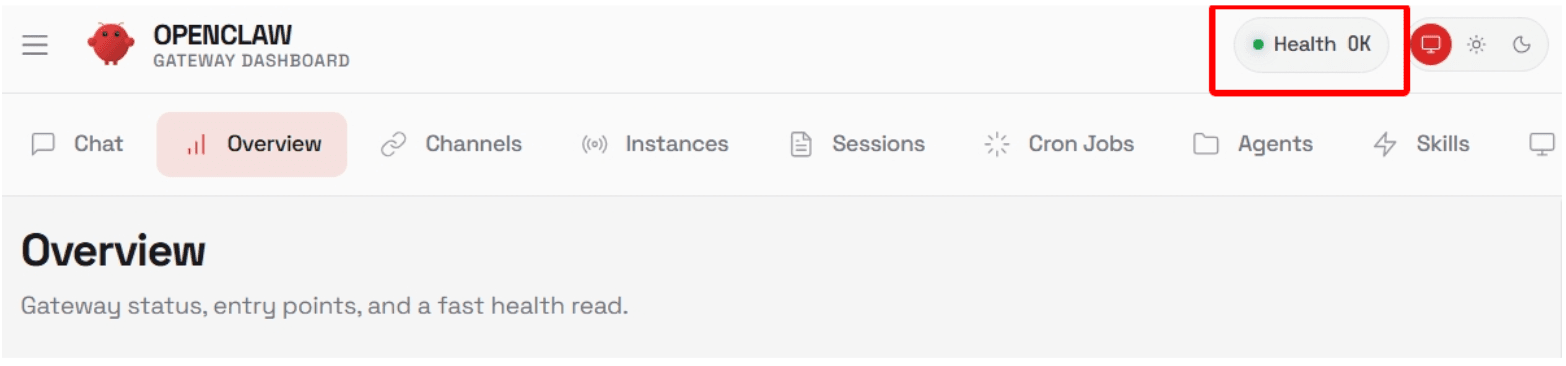
Browse to the sandbox preview URL again. The Control UI should now be fully functional and ready to accept requests, verified by the health check in the top right corner.
Test OpenClaw
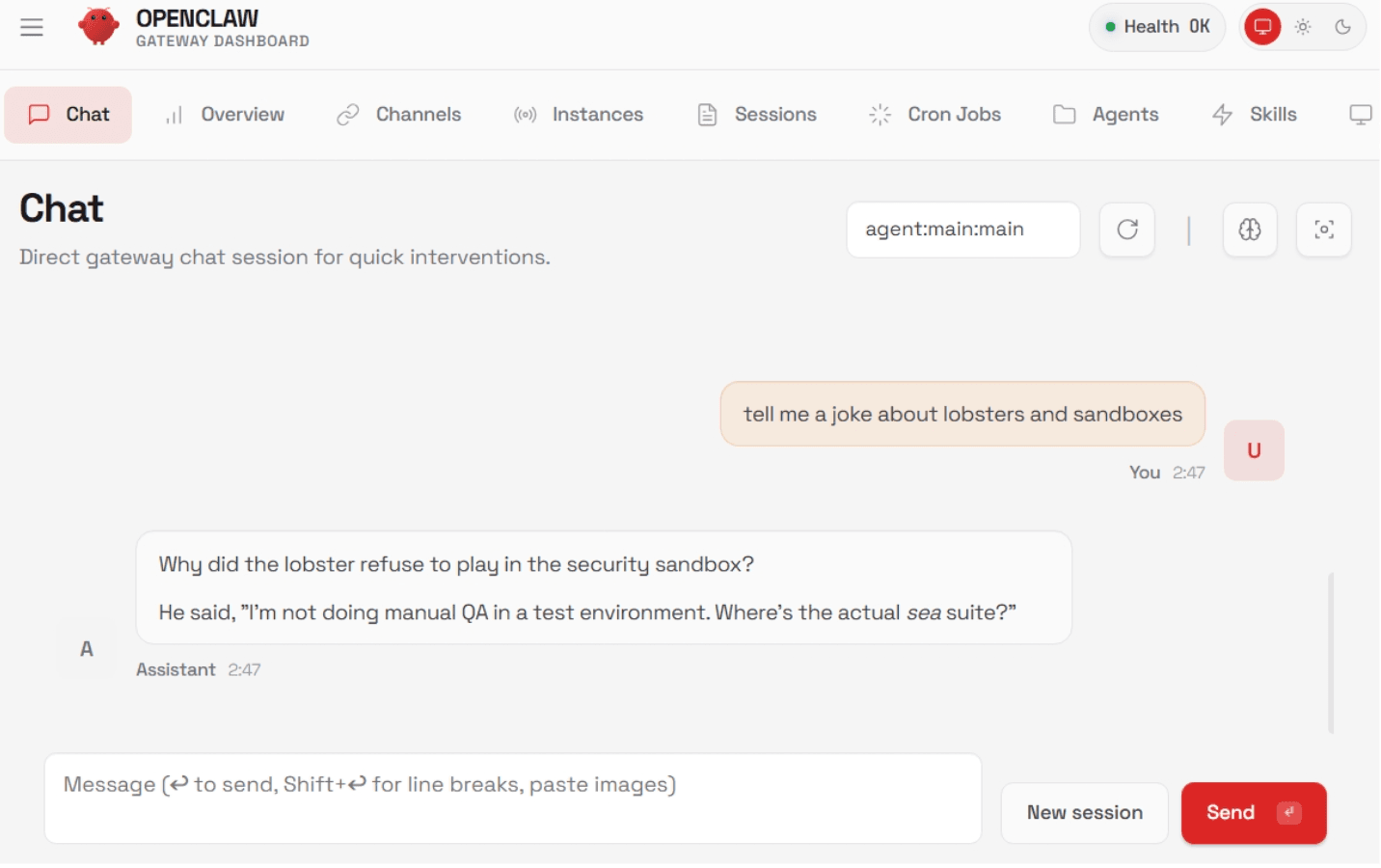
Navigate to the Chat page, enter a prompt, and wait for a reply to confirm that the OpenClaw agent is working:
NOTE: As mentioned earlier, the OpenClaw Gateway process must remain running while you interact with the agent. However, if you end your interactive shell session with the Blaxel sandbox, the Gateway process will terminate automatically as well. To keep the Gateway process running even if you're not in an active shell session with the sandbox, create and execute the following script:
import asyncio
import os
import sys

from blaxel.core import SandboxInstance

async def main():
    # Get sandbox
    sandbox = await SandboxInstance.get("openclaw-sandbox")

    # Start process
    process = await sandbox.process.exec({
      "name": "start-openclaw-gateway",
      "command": "openclaw gateway --bind lan --verbose",
      "restart_on_failure": True,
      "max_restarts": 5
    })

if __name__ == "__main__":
    asyncio.run(main())
Related articles
Blaxel News
Securing the open frontier with NVIDIA OpenShell and Blaxel sandboxes
Baseten is a launch partner for the NVIDIA Agent Safety Platform and supports OpenShell in the latest generation of Blaxel Sandboxes.
4 min read
Blaxel News
How to Combine Sandbox Safety with a Decision Layer That Gets the Job Done
Sandboxes let coding agents act safely. Decision layers make sure they act correctly. How Blaxel and Rippletide think about combining both.
5 min read
Blaxel News
Close your laptop. Keep DeepSeek Harness working on Blaxel.
Take your DeepSeek Harness task to a private Blaxel host and let it keep working. Review the patch, then return the files and conversation to your computer.
4 min read